Version 3 of the Email Builder
A quick guide of the newest version of the Email Builder.
On This Page
Version 3 of the Email Builder will be rolling out to campus in December 2025. Learn more about new features below. A full documentation site will be available soon.
Premium Tier Updates
In version 3, the Premium Tier has replaced its many template options with two new templates, an “Enhanced Newsletter” template available to Editors and a “Create Your Own” template available to Email Administrators.
The “Enhanced Newsletter” template consolidates all blocks from all previous templates into one, customizable editor, and the “Create Your Own” template includes all Premium Tier blocks plus additional, more technical blocks.
Blocks
New blocks add more on-brand, visual content to emails. Block preview images are now available in the block inserter menu.
- From the blue plus sign “Block Inserter” menu, hover over a block to display a preview.
Image Sizing
With more image-heavy headers and blocks in version 3, using the correct image sizes is critical. Each has specific size requirements to display properly.
- To view these requirements, select the block and click the “Settings” menu on the right, opening the “Block” settings.

Animation
Three new blocks introduce animation into the Email Builder:
- Interactive Header
- Animated Header
- Animated Divider
Keep in mind, headers should only be used as headers at the top of an email, and the divider should only be used as a divider within the body of the email. This ensures emails have correct heading hierarchy and meets accessibility standards.
Email Length
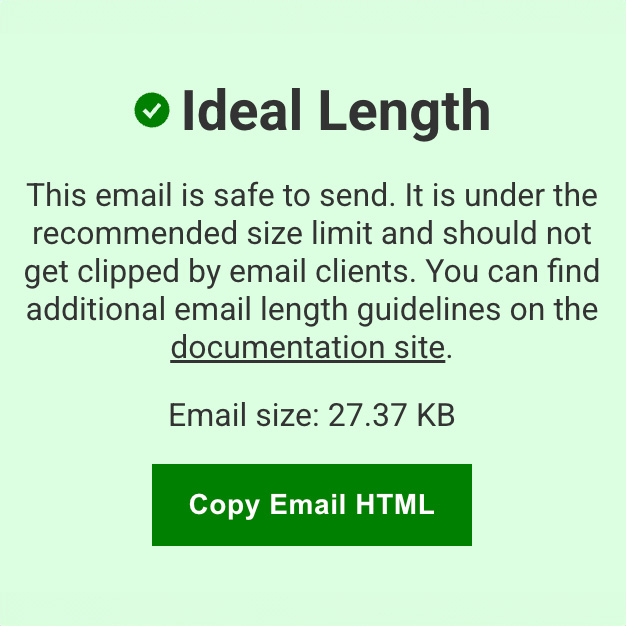
Shorter emails render consistently across devices and have higher read-through and engagement rates from readers, especially on mobile devices. To help keep emails at an ideal length, the email preview page displays a box to the right of the email indicating whether it meets length requirements.
- To view the Ideal Length box, open the preview screen by clicking the computer icon in the top right corner of the editor and clicking “Preview in new tab”.
Copying HTML to Use in Email Marketing Platform
As part of the ideal length box, a “Copy Email HTML” button has been added to make it easier to copy an email’s HTML to use in an email marketing platform.
- To copy Email Builder HTML, open the preview screen by clicking the computer icon in the top right corner of the editor and clicking “Preview in new tab”. From the preview, click the green “Copy Email HTML” button within the Ideal Length box.
Copying code from the “View Page Source” console will no longer work.
Upgrading to Version 3
Upgrades will begin in December 2025. If you’re interested in being an early adopter or have a strong preference for being near the end of the upgrade queue, please reach out to Luis Chacón at lrchacon@ncsu.edu.
Questions
If you have questions or issues after this update, please submit a ticket to wordpress@help.ncsu.edu with Email Builder v3 in the subject line.