Image Guidelines
Images are a powerful way to enhance your emails, and the Email Builder offers multiple blocks that incorporate them. However, images in email require special attention. Properly sized and optimized images ensure fast loading, consistent display across different email marketing platforms, and accessibility for all recipients. Follow these guidelines to get the best results from your email images.
Image Size
The default width for most blocks in the Email Builder is 1200 pixels, but image size requirements vary by block. Using the correct dimensions ensures the block displays correctly and maintains visual consistency. It is recommended that you crop images before uploading them. Image specifications are listed in the block settings in the editor.
To view the image specifications for a block:
- Click the “Switch to Edit” pencil icon on the block or the “Settings” panel found next to “Publish.”
- View specifications under “Image Size.”
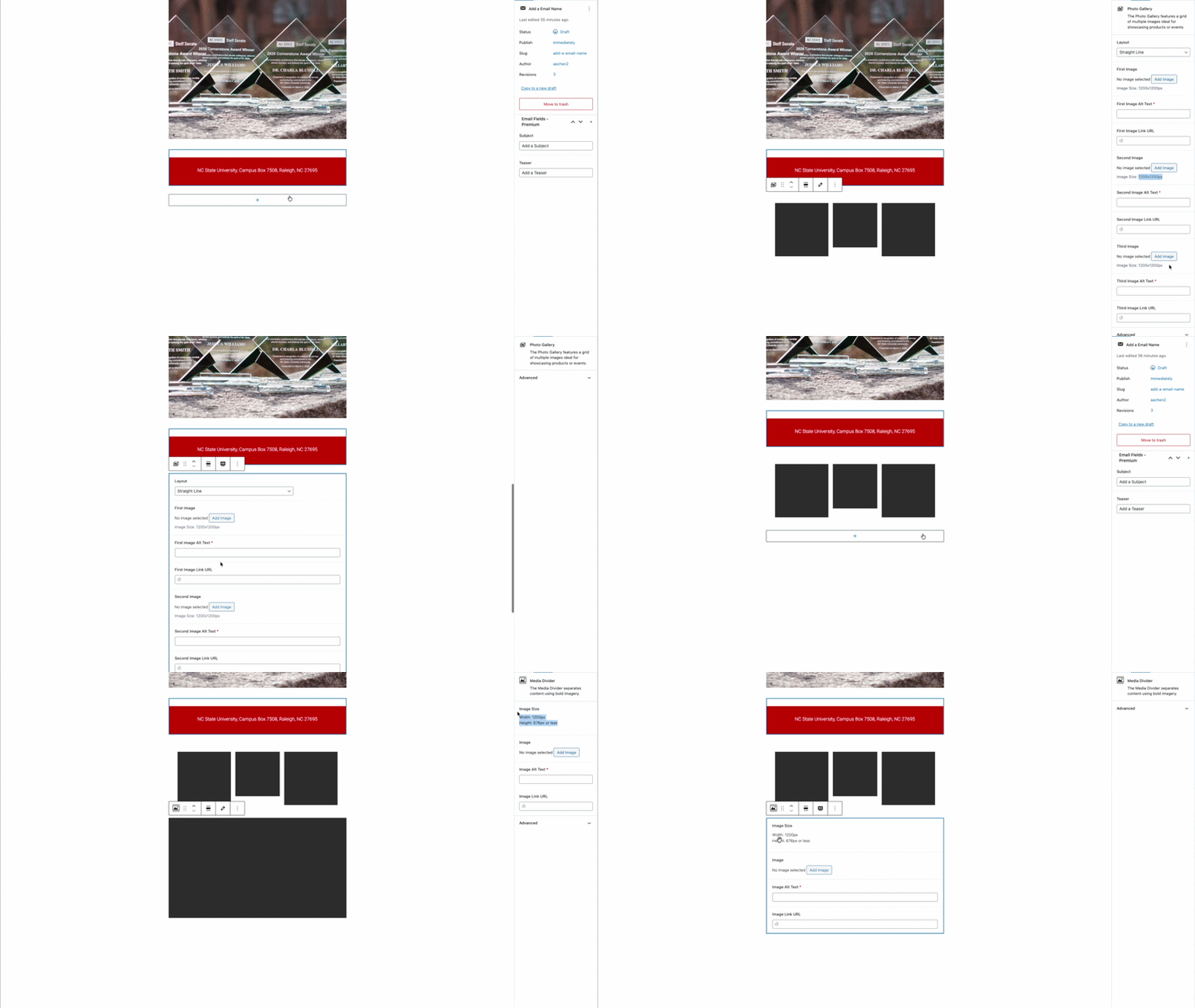
Image Resizing Resources
File Size and Type
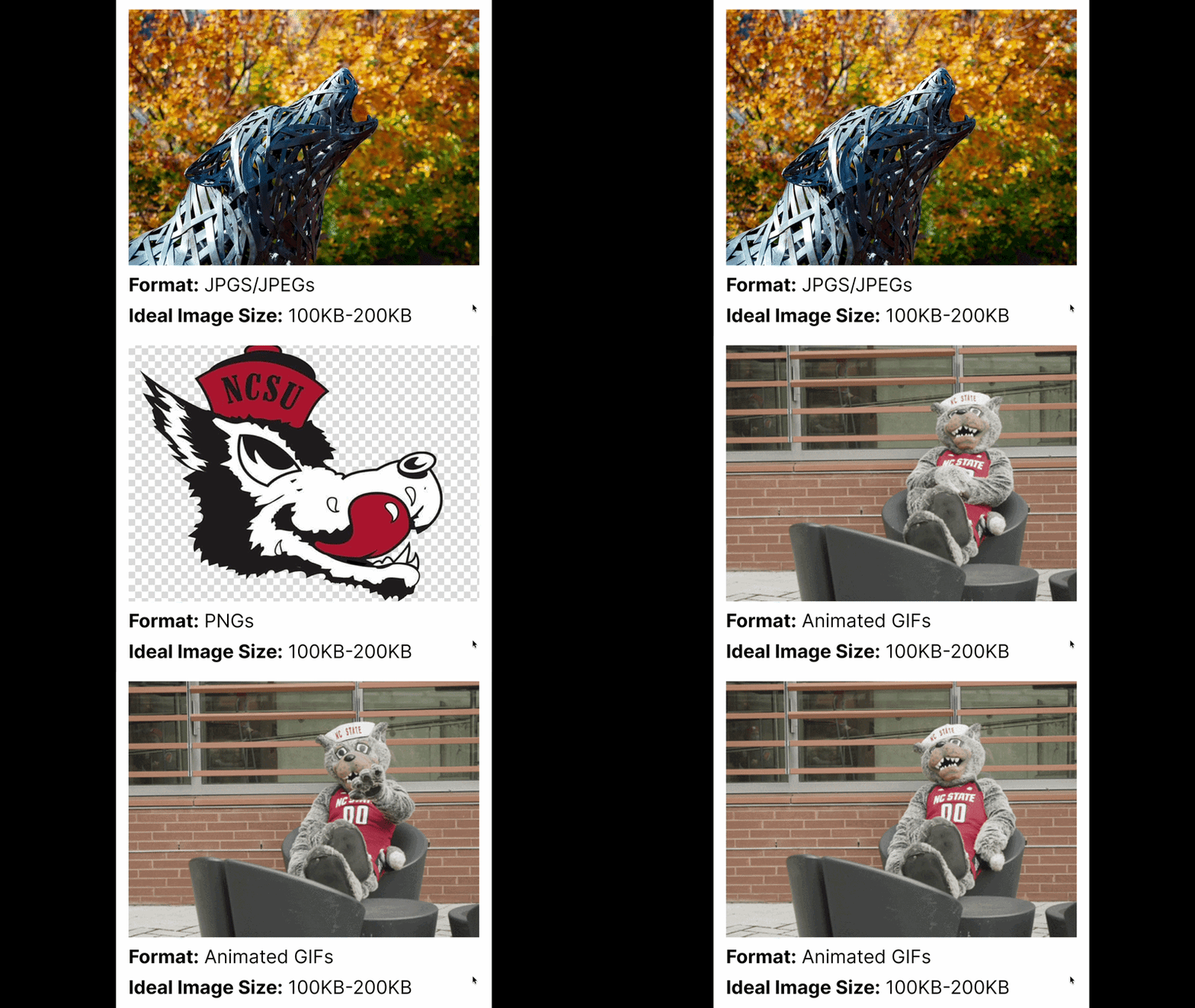
Using smaller file sizes ensures faster load times and a better user experience on mobile devices. For optimal email performance, image file sizes should ideally be between 100 and 200 KB.
The file type you use depends on the content:
- JPG/JPEGs should be the most frequently used file type and are used for photographs.
- PNGs should be used for vector graphics or images with a transparent background only. You should avoid using graphics with text embedded in them, because the text won’t be readable if images fail to load, and screen readers can’t access them. If a graphic must contain text, duplicate that text elsewhere in your email.
- Animated GIFs are animated image files that can add visual interest to your emails. If you use them, use them sparingly because they create slower loading times and can overwhelm readers when overused.
Alternative Text (Alt Text)
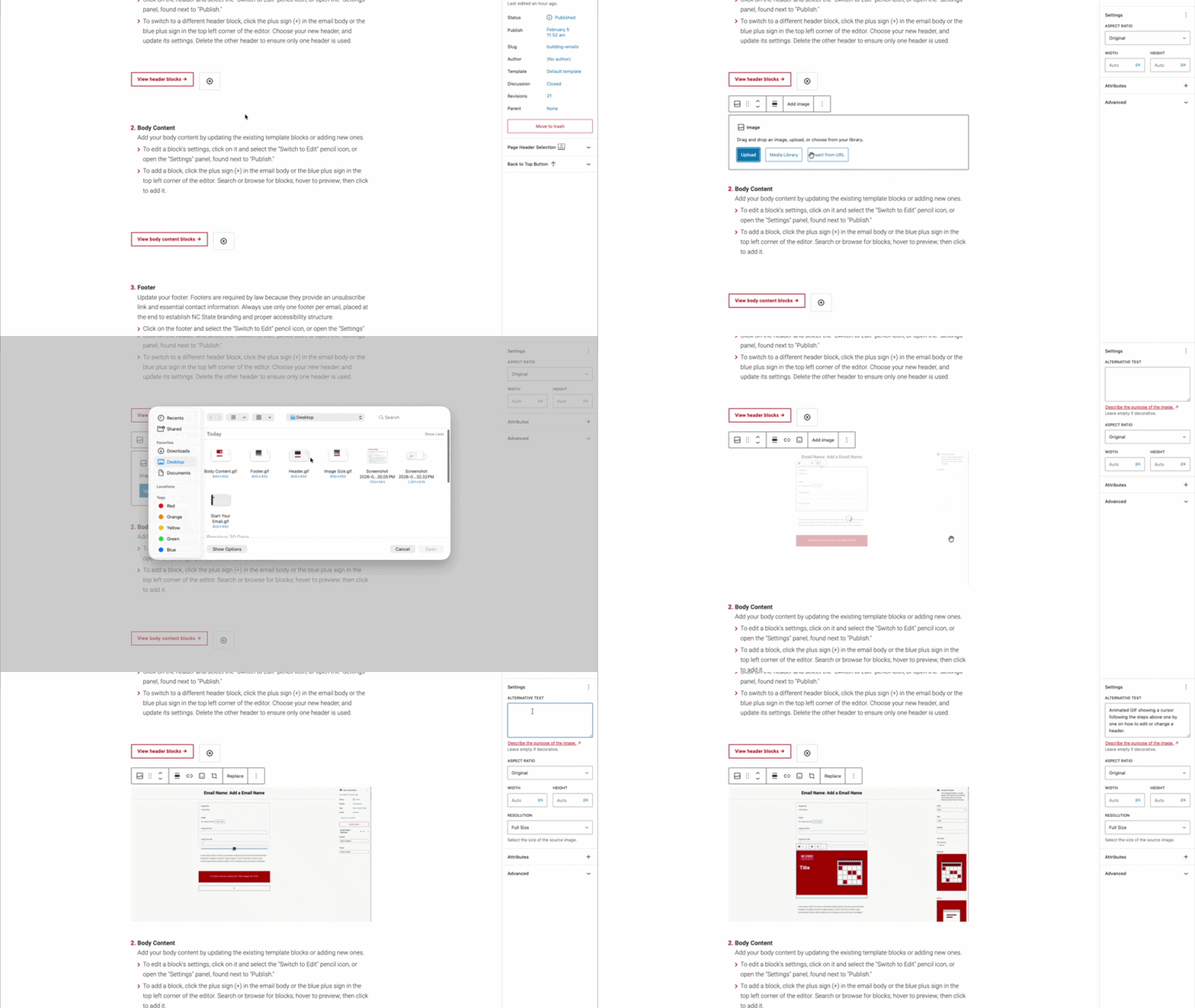
Alternative text (alt text) is required for all images in your emails to ensure accessibility for recipients using screen readers and to provide context when images don’t load. Alt text provides a text description of the image that conveys its content.
To add alt text to a block that uses images, click the “Switch to Edit” pencil icon on the block, or click on the “Settings” panel next to “Publish,” and enter a descriptive phrase in the “Image Alt Text” field. Keep your alt text concise but meaningful. Describe what the image shows and why it’s relevant to your message.