Managing Blocks
Blocks are used to provide the basic structure of a web page's content. Blocks allow you to add many different content types and easily organize content on your page.
Selecting Blocks
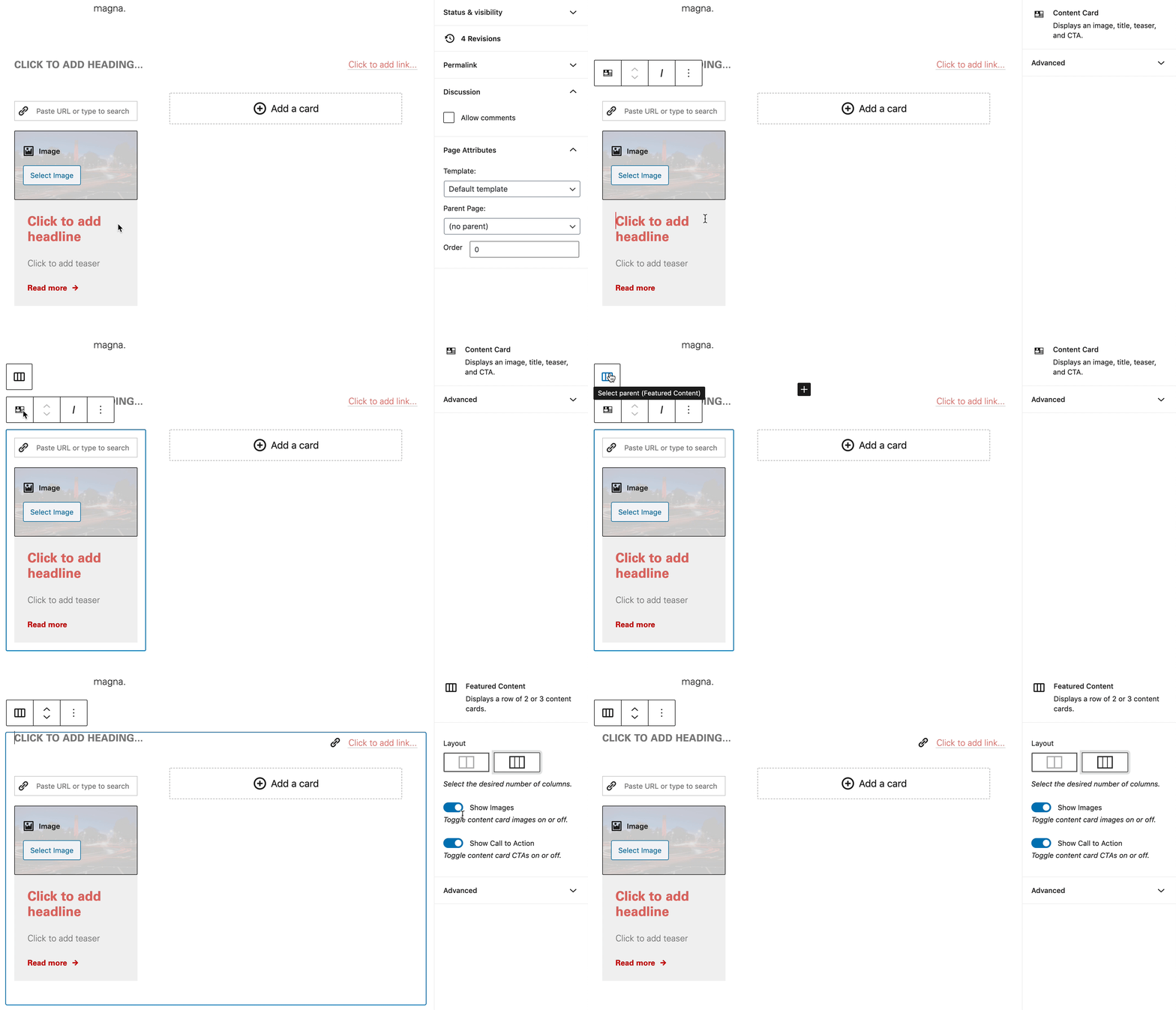
In most cases, selecting a block is as simple as clicking on it. However, some blocks may be contained within other blocks, with different options available depending on what level is currently selected. In many cases, clicking around the outer perimeter of the row will select the outer block. Because there is no visual indicator of where this is, simply clicking may at times feel difficult and imprecise. To explicitly select a parent block, hover over the icon of the currently selected block to display a button to quickly select the outer parent block.
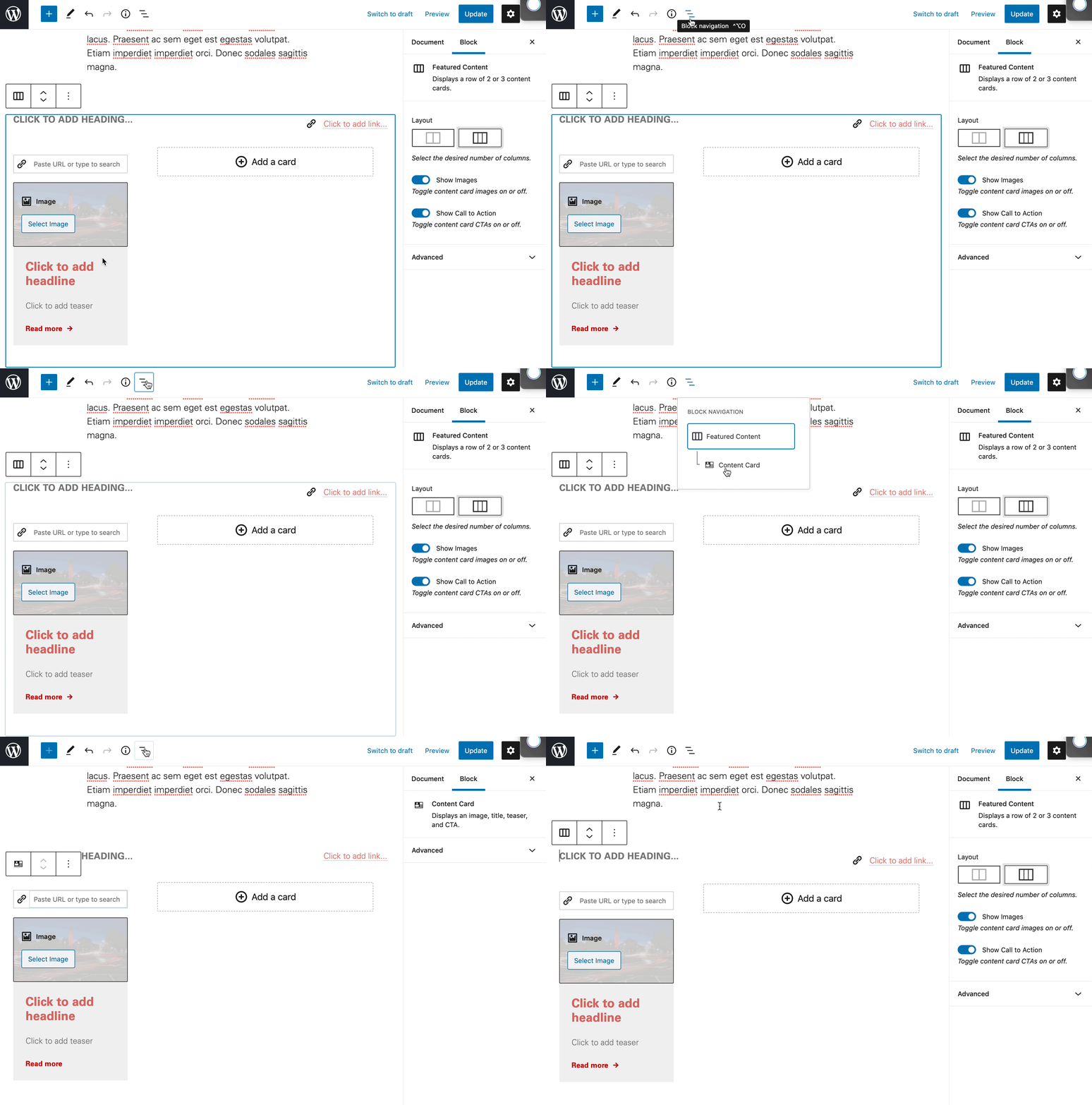
Another selection option is to use the Block Navigation tool located on the editor toolbar to manually select the desired block. This menu will change depending on the currently focused context. If currently focused on a block containing inner blocks, the menu will reflect the hierarchy of the currently focused block. If no specific block is focused, the menu will reflect all the blocks currently on the page/post.
Available Blocks
Available blocks in the NC State theme can be reviewed on the filterable Blocks page. You can also view the Block Schematic, which shows an example page with each block labeled.