Icon Links Block
Use Cases
The Icon Links block can be a useful alternative to the Link List block, the Featured Content block and the Button block when trying to display an assortment of resources.
The Icon Links block allows content maintainers to build out a grid of related links that help catch a reader’s attention via a spot illustration and custom headers. This block is an effective tool for directing users to specific information that may not be captured in the top-level menu of your site. It also provides a good way to highlight resources that were discussed in preceding paragraphs. This block can be used in conjunction with top-level menus to help ensure that skimming users can easily find what they are looking for.

Features
To add an Icon Links block to a page, click the “Add a block” button and choose “Icon Links” from the block list. Alternatively, the block can be found by using the “Search for a block” function. For more information on blocks and adding them to a WordPress site, see our documentation on blocks.
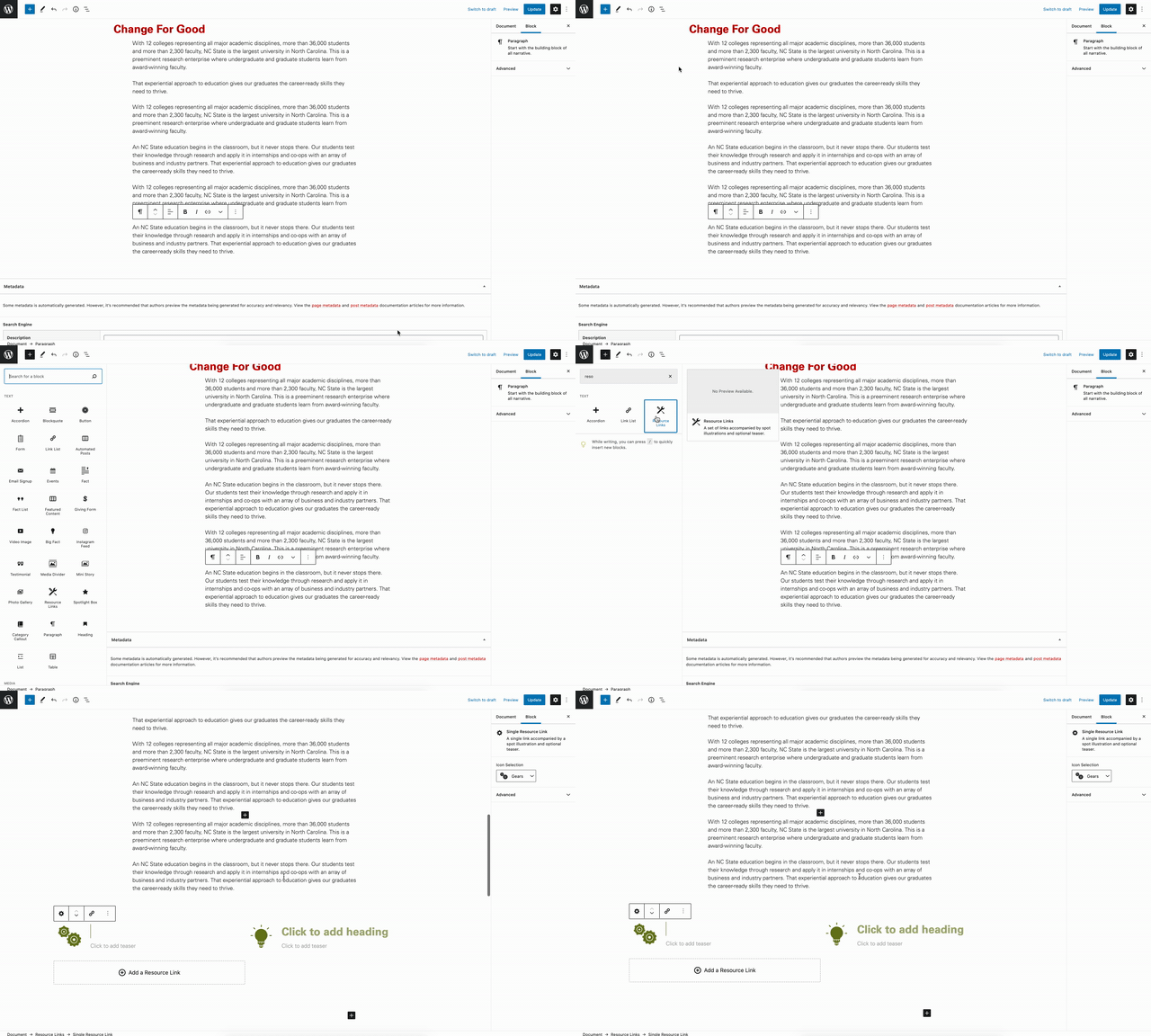
Once added, the Icon Links block allows site maintainers to add additional resource cards. Each card includes a heading, teaser text and a link that sends users to the associated resource (most likely another webpage). Additionally, the color of the Icon Links block can be changed under the “Block” settings found on the right-hand side of the editing screen.
