Tables and Tabular Data
Table Block
To present data in a relatively simple format — such as a set of columns with named headings — the Table block is easy to use, update and understand. By default, the Table block will fit to the width of the page content, but it can be extended wider by choosing the “Align Wide” option. This is especially recommended for tables with more columns.
Ninja Tables
Ninja Tables is a WordPress plugin designed to help users create responsive, customizable data tables. It provides a visual interface for building tables from scratch or importing data from sources like CSV files and Google Sheets. Users can sort, filter and search table content, making this plugin useful for presenting structured information such as directories, pricing charts, comparison tables or event listings.
The plugin also includes styling controls and options for integrating with other WordPress tools, allowing tables to match site branding while remaining mobile-friendly. For content managers who need to publish structured data frequently, Ninja Tables offers a more flexible and scalable alternative to manually building tables in the default WordPress editor.
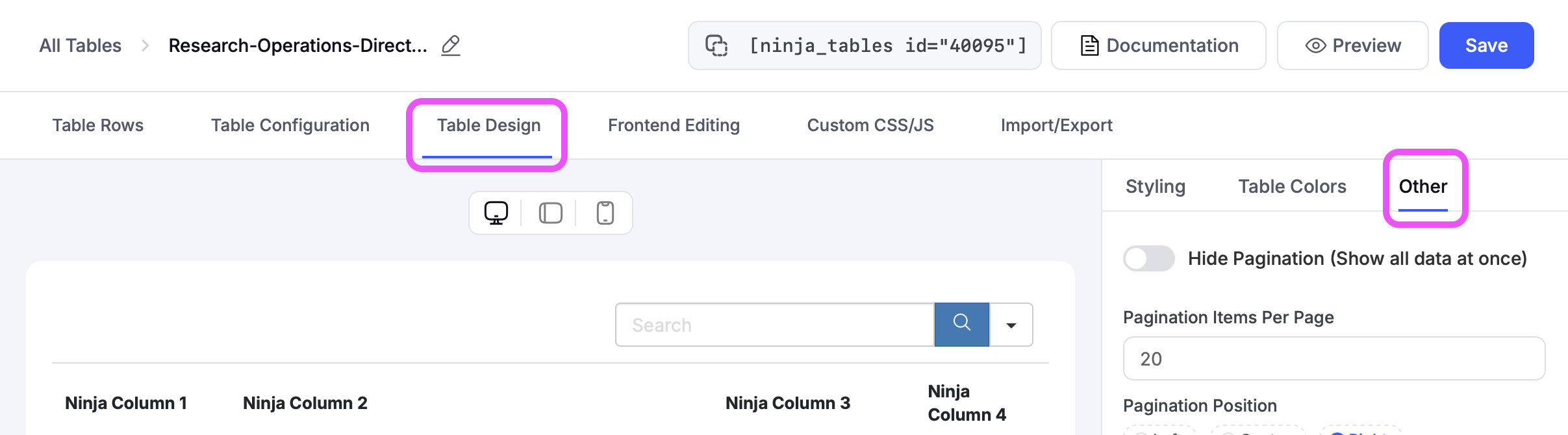
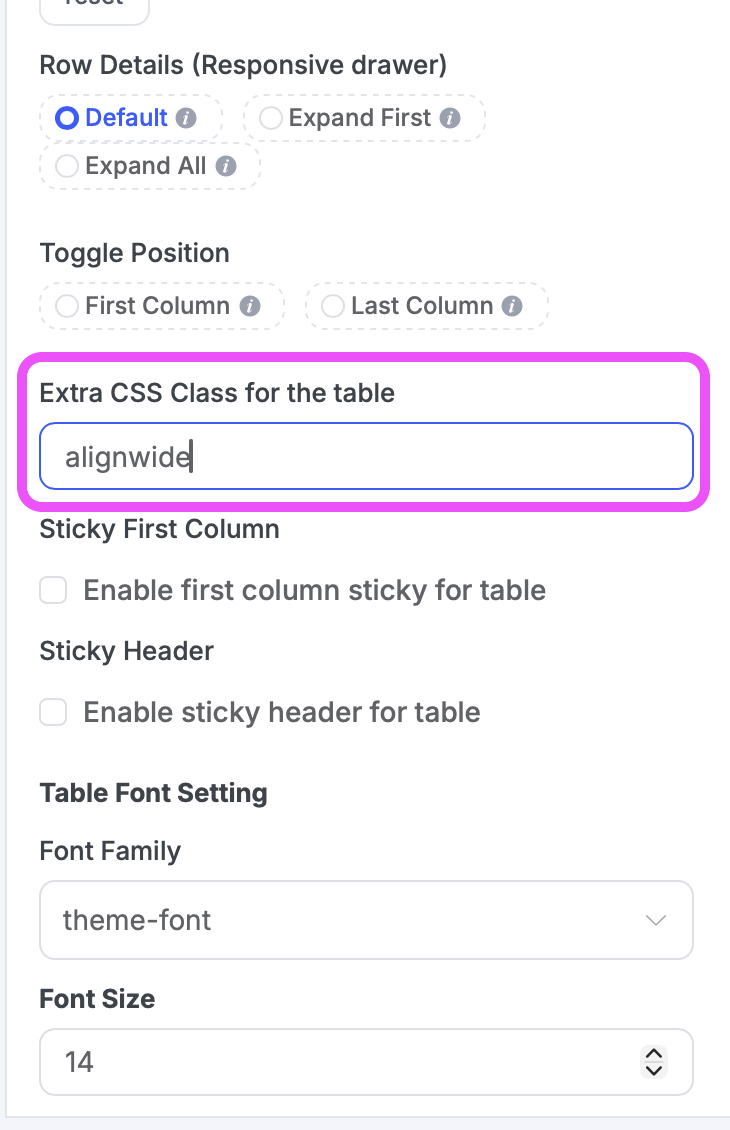
To increase the width of your table within the NC State Theme, add one of the following CSS classes to the table by navigating to “Table Design” > “Other” to access “Extra CSS Class for the table” in the right-hand sidebar.
You can enter “alignwide” to make the table slightly wider than the theme’s standard paragraph width. Entering “alignfull” will size the table to the full width of the page.
TablePress
For more complex data that may need advanced features such as filtering, sorting or pagination, using TablePress is recommended. TablePress is a third-party plugin with basic NC State Theme styling support, allowing for more in-depth customization of table functionality.
To view an example of TablePress in action, see the official TablePress demo page. For full documentation on how to configure and use TablePress, the TablePress Documentation site has full details on how to fully use all the features available. As tables become increasingly complex, be sure to keep in mind table accessibility requirements and best practices.
Which Do I Use?
When considering which tool to use, the decision is ultimately determined by the content to be displayed. Because of the Table block’s ease of use and relatively low need for configuration, this block is a good place to start.
Alternatively, TablePress may be the appropriate solution if your table data meets any of the following criteria:
- Contains a complex structure of headings, columns or subgroupings of either
- Is long enough to require pagination
- Needs to be searchable
- Needs to be sortable
UComm is available to assist, especially to ensure that the end result is as accessible as possible.
Accessibility
The W3.org WAI Table Concepts article provides a good overview of the necessary considerations for creating an accessible table. In most cases, the more complex the structure of the table is, the more necessary it is to have mindfully placed scope attributes placed directly within the table’s markup (that is, directly in the code), with placement and values dependent on the data itself.
Neither the Table Block nor TablePress automatically supports this scope attribute by default. For tables requiring this attribute, please send a request for assistance.