Name Pronunciation
The following are step-by-step instructions on how to create and publish an audio recording of your name, when adding your profile to a page - if you wish to use the [optional] Name Pronunciation feature within the NC State People plugin [Note: this option is found when adding yourself as a New Person under the "People" settings within the admin dashboard for the site of your college or department, after installing the NC State People plugin]:
- Step 1: After clicking on the namecoach link found under the “Name Pronunciation” setting, fill out the form provided – which will prompt you for your personal information (Note: creating a YouTube video to record your name is not necessary – and it is entirely up to you, if you would also like to create a video of your name story, in addition to creating a audio recording of your name).
- Step 2: You will be asked to provide an audio recording of your name. You have three options to choose from for doing so – [recording via] “Phone,” “Web Recorder,” or “Uploader.” Once you have provided an audio recording of your name via one of these options, you can preview the recording by clicking the play icon and you may repeat the process of your recording option of choice with a new audio recording, until you are satisfied with the result. Once satisfied, click submit.
- Step 3: You will then be provided with a link to your recording, as shown here:
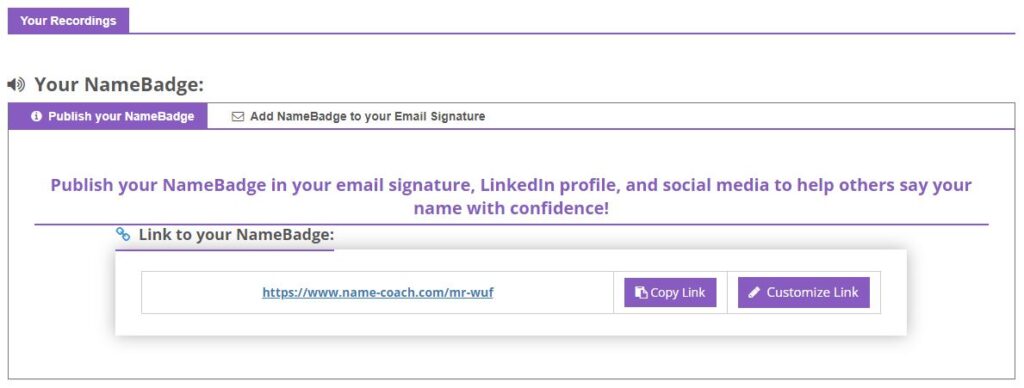
- Step 4: Copy the audio link that you are provided with, then head back over to the “People” settings within your site’s admin dashboard, and insert it next to the globe icon, as shown here:

- Step 5: Proceed with the rest of the steps outlined in the “People” settings within your site’s admin dashboard. The NC State People plugin will then automatically display a link next to your name so that people can hear how your name is pronounced on your profile page, whenever your name is added to an NC State directory (faculty, staff, or alumni) for your college or department site, from the campus LDAP.
Need help?
Have questions? Feel free to reach out with any questions or concerns at go.ncsu.edu/ucomm-dev-request.