Re-indexing Content on Search Engines
If you've recently made important and time-sensitive changes to your website, follow this tutorial to learn how to re-index your content on Google and Bing.
Introduction
Manually re-indexing website content can be useful when you’ve made important changes to your website — such as updating time-sensitive content, adding important new pages, or fixing technical issues — and you want search engines to reflect those changes in their results as soon as possible.
It is not necessary to do this every time you edit your website, as search engines will automatically crawl and re-index your web content on an ongoing basis. However, it may take anywhere from 24 hours up to a few weeks between crawls. If time is of the essence, continue reading to learn how to request major search engines to re-crawl and re-index your website content.
Since Google and Bing together represent the vast majority of inbound organic search traffic to NC State’s websites, this tutorial will cover those search engines. If you’d like to cover your bases with other search engines — such as Yahoo, DuckDuckGo, or Baidu — please consult the documentation for those platforms. Consult your website’s Google Analytics data for more information about which search engines you should prioritize based on how much traffic they drive to your site.
Re-indexing on Google
Currently, page re-indexing requests are managed through Google Search Console. Google Search Console is a free tool that helps website owners manage their site’s presence on Google. Google Search Console is a recommended analytics tool that integrates with Google Analytics.
If you already have Google Search Console set up:
1. Log in to Google Search Console here.
2. Select your website in the dropdown menu of verified properties in the upper lefthand corner (see screenshot).

3. Enter the URL you’d like Google to re-index in the URL inspector at the top of the page (see screenshot).

4. Google Search Console will tell you the status of the page. To request a re-crawl of the page, click “Request Indexing.”

If you do not already have Google Search Console set up:
Follow Google’s documentation on setting up Google Search Console on your website. You will need to verify you are an owner of your site via one of the available verification methods when prompted. The easiest verification method — and the one we recommend for most campus communicators — is to log in via a Google account that has “edit” access to the Google Analytics account running on the website.
Once you’ve set up Google Search Console, it’s a good idea to go ahead and connect it to your Google Analytics account.
If you need assistance with this process, consult the technical administrator or team member responsible for managing your website.
Re-indexing on Bing
Currently, page re-indexing requests can be managed through Bing Webmaster Tools. Bing Webmaster Tools is a free service that helps website owners manage their site’s presence on Bing.
If you already have Bing Webmaster Tools set up:
1. Log in to Bing Webmaster Tools here.
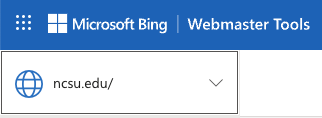
2. Select your website in the dropdown menu of verified properties in the upper lefthand corner (see screenshot).
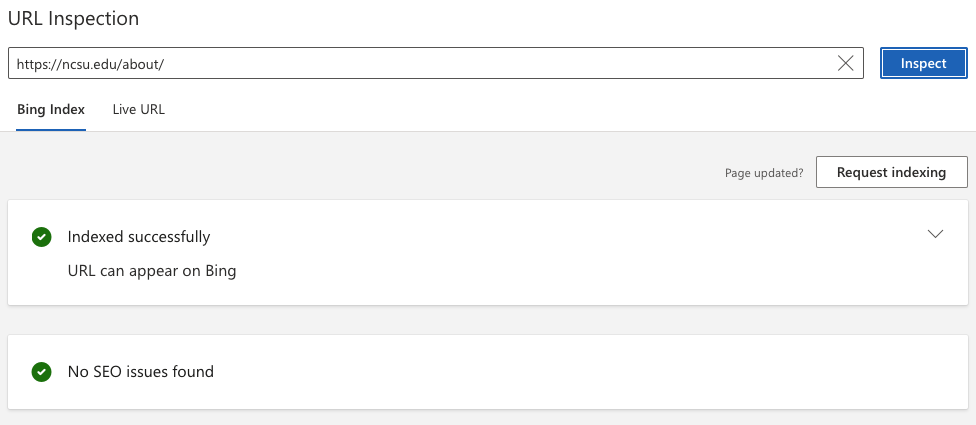
3. Navigate to the URL Inspector tool and enter the URL you want Bing to re-index at the top of the page (see screenshot).

4. Bing Webmaster Tools will tell you the status of the page. To request a re-crawl of the page, click “Request indexing.”
If you do not already have Bing Webmaster Tools set up:
Follow Microsoft’s official documentation to set up Bing Webmaster Tools for your website. You’ll need to verify that you own your domain through one of the available methods (such as uploading an HTML file, adding a meta tag, or using a DNS record). If you have already set up and verified a Google Search Console account for your website, Bing Webmaster Tools allows you to import your verification from Google Search Console by logging in through your Google account. This will likely be the easiest verification method for most campus communicators.
If you need assistance with this process, consult the technical administrator or team member responsible for managing your website.