Tables and Tabular Data
Table Block
For relatively simple data, such as a set of columns each with named headings, the Table Block is easy to use, update, and understand. By default, the Table Block will fit to the width of the page content, but may be extended wider by choosing the ‘Align Wide’ option. This is especially recommended for tables with larger numbers of columns.
Ninja Tables
Ninja Tables is a WordPress plugin designed to help users create responsive, customizable data tables. It provides a visual interface for building tables from scratch or importing data from sources like CSV files and Google Sheets. Users can sort, filter, and search table content, making it useful for presenting structured information such as directories, pricing charts, comparison tables, or event listings.
The plugin also includes styling controls and integration options with other WordPress tools, allowing tables to match site branding while remaining mobile-friendly. For content managers who need to publish structured data frequently, Ninja Tables offers a more flexible and scalable alternative to manually building tables in the default WordPress editor.
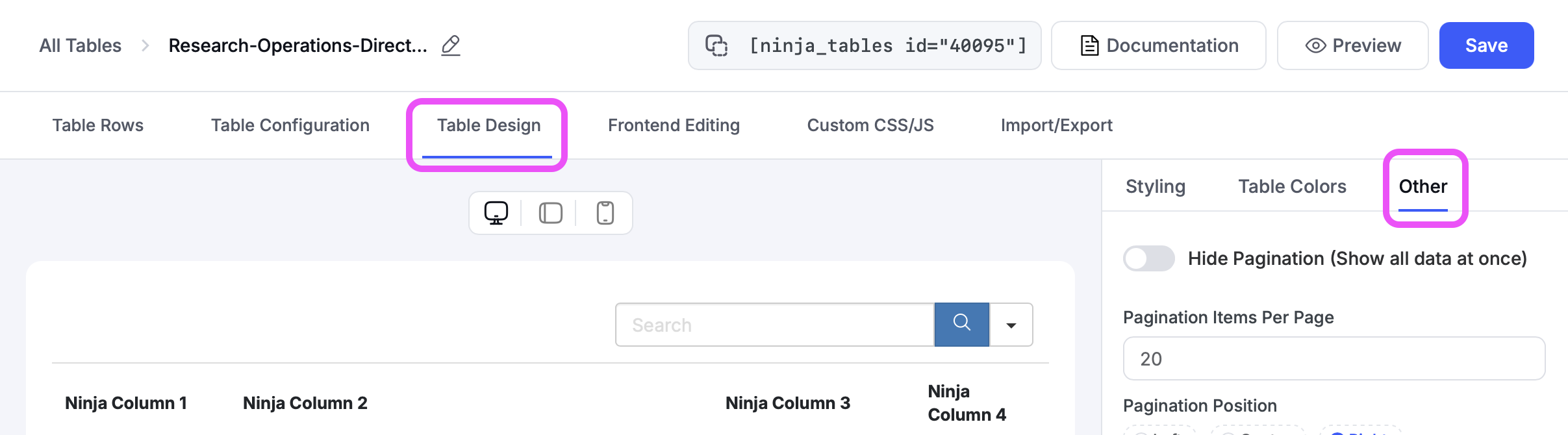
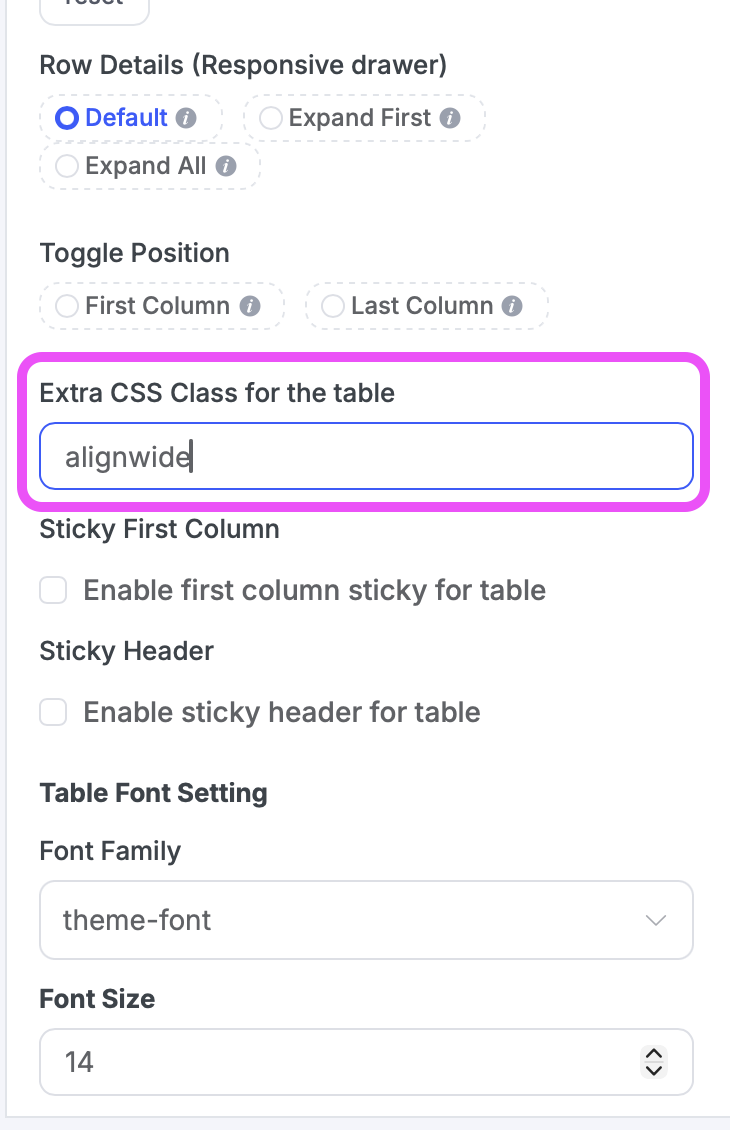
To increase the width of your table within the NC State Theme, add one of the following CSS classes to the table by going to Table Design -> Other tab on sidebar -> Extra CSS Class for the table.
You can add alignwide to make the table slightly wider than the theme’s standard paragraph width. Using alignfull will make the table the full width of the page.
TablePress
For more complex data that may need advanced features such as filtering, sorting, or pagination, using TablePress is recommended. TablePress is a third party plugin with basic NC State Theme styling support allowing for more in-depth customization of table functionality.
To view an example of TablePress in action, see the official TablePress demo page. For full documentation on how to configure and use TablePress, the TablePress Documentation site has full details on how to fully utilize all the features available. As tables become increasingly complex, be sure to keep in mind table accessibility requirements and best practices.
Which Do I Use?
When considering which tool to use, the decision is ultimately determined by the content to be displayed. Because of its ease of use and need for relatively little configuration, the Table Block is a good place to start.
If your table data:
- contains a complex structure of headings, columns, or subgroupings of either
- is long enough to require pagination
- needs to be searchable
- needs to be sortable
then TablePress may be the appropriate solution. UComm is available to assist, especially to ensure that the end result is as accessible as possible.
Accessibility
The W3.org WAI Table Concepts article provides a good overview of the necessary considerations for creating an accessible table. In most cases, the more complex the structure of the table is, the more necessary it is to have mindfully placed scope attributes placed directly within the table’s markup (that is, directly in code), with placement and values dependent on the data itself.
Neither the Table Block nor TablePress automatically supports this scope attribute by default. For tables requiring this attribute, please send a request for assistance.
Need help?
Have questions? Feel free to reach out with any questions or concerns at go.ncsu.edu/ucomm-dev-request.