Table of Contents Header Setting
Help your users navigate your longer webpages with ease. Mitigate the need for scrolling and help them quickly find what they need.
Use Cases

Toggling on the Table of Contents setting within a header can enhance the overall experience of visiting a webpage. Certain webpages benefit from the inclusion of a table of contents. In particular, pages that are long-form in nature. Some common examples are:
- In-depth articles
- How-to guides
- Whitepapers
- Research reports
- Documentation or FAQs
The main goal of including a Table of Contents is to increase navigability. Below are several other reasons you may want to consider using the Table of Contents.
Why Use the Table of Contents?
| Benefit | Concept |
|---|---|
| Improvements to navigation | The Table of Contents header setting helps users jump to specific sections of a page. This prevents them from having to scroll through the entire page. This in turn could retain your users on your site. |
| Provides a Helpful Content Overview | The Table of Contents header setting gives users a snapshot of the page’s structure and topics covered. This helps users determine if they need to search elsewhere on your site for what they are seeking. |
| Enhances Accessibility | The Table of Contents header setting is especially helpful for users with disabilities, in particular those using screen readers or keyboard navigation assistive technology. |
| Reduction of Cognitive Load | By breaking content into manageable chunks, the Table of Contents header setting makes the page less overwhelming. Users tend to skim content on the web. A table of contents can ensure that they see the most important parts of your page. |
| Boosts SEO and Usability | The Table of Contents header setting leverages anchor links. These anchor points within the page are often indexed by search engines. This improves visibility on search engines while providing a better browsing experience. |
Features
You can find the Table of Contents within the header area of a page. It will only display at the top of the webpage directly below the header. This is by design to ensure that your table of contents is first on the page, accessible and easy to read.
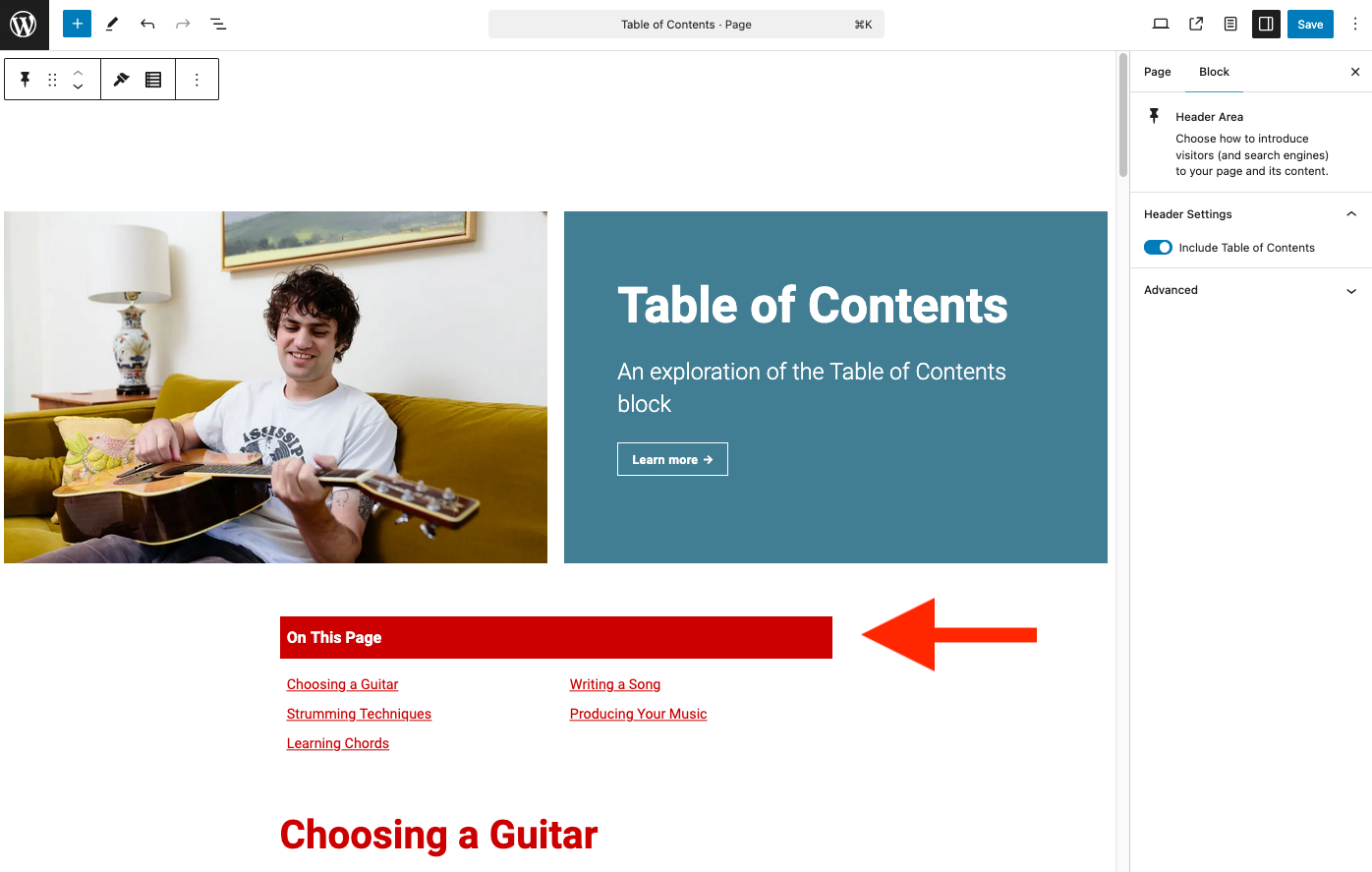
By default, Table of Contents is turned off. To enable it, you must toggle it on. You can do this through your webpage header’s block settings, or the header area toolbar.
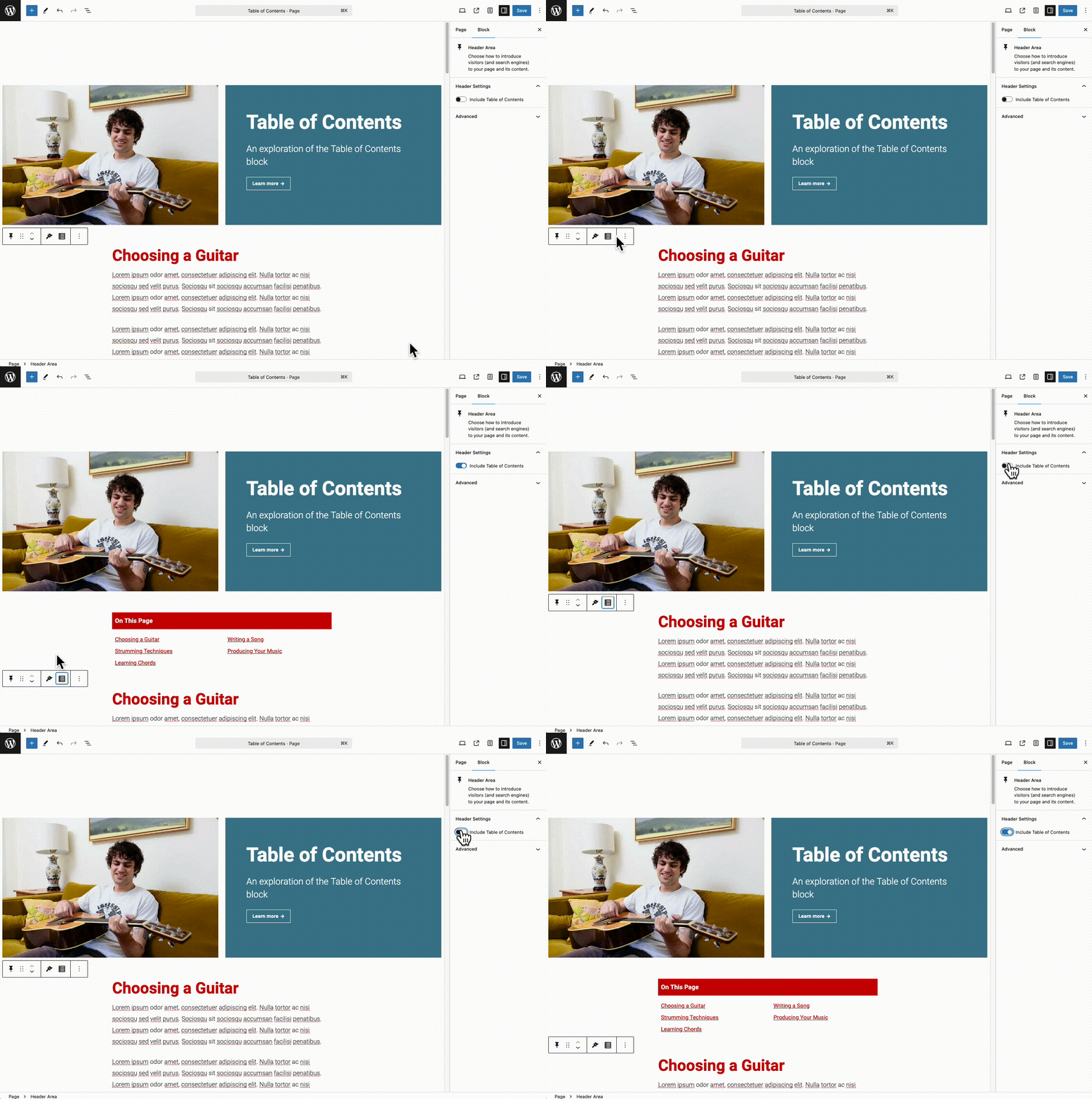
Before the Table of Contents populates any content, you must add headings to your page. You will also need to set anchor links for each heading item. To learn more about setting you anchor links, you can read our anchor links documentation.
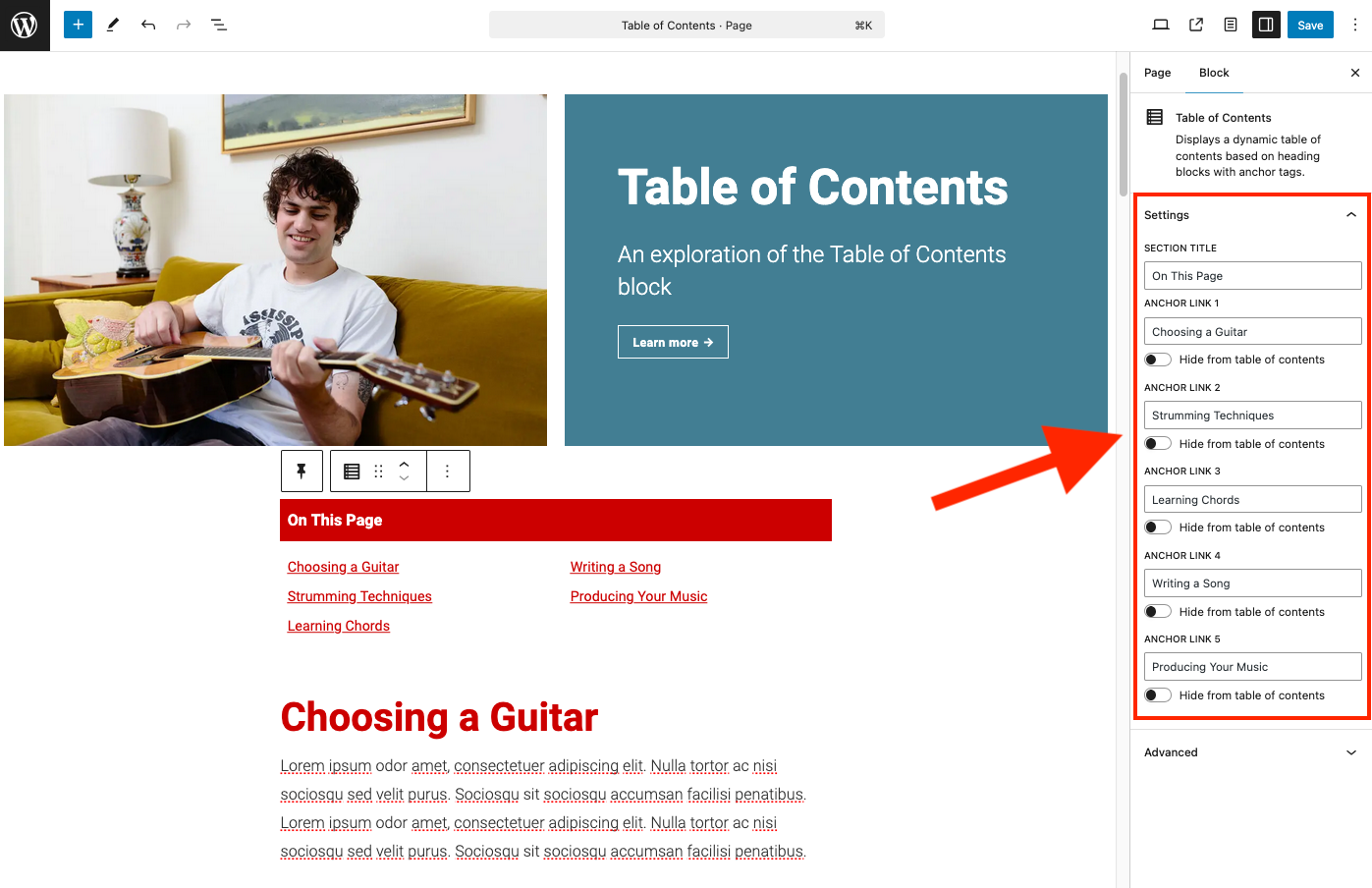
After populating your headings and anchor links, they will automatically be added to your table of contents. You can also modify the section title, anchor links, and hide sections you don’t want to include.
A Note on Headings
To get the most out of your Table of Contents, it’s important to leverage a good heading structure. Having a thoughtful heading structure also produces a more readable webpage. Which should yield higher reader retention. Feel free to read the article linked below for more information on thoughtful heading structure and anchor links.