Instagram Feed Block
The Instagram Feed block is a good option for displaying visual content from an Instagram feed, as well as driving users to view and engage with Instagram channel content.
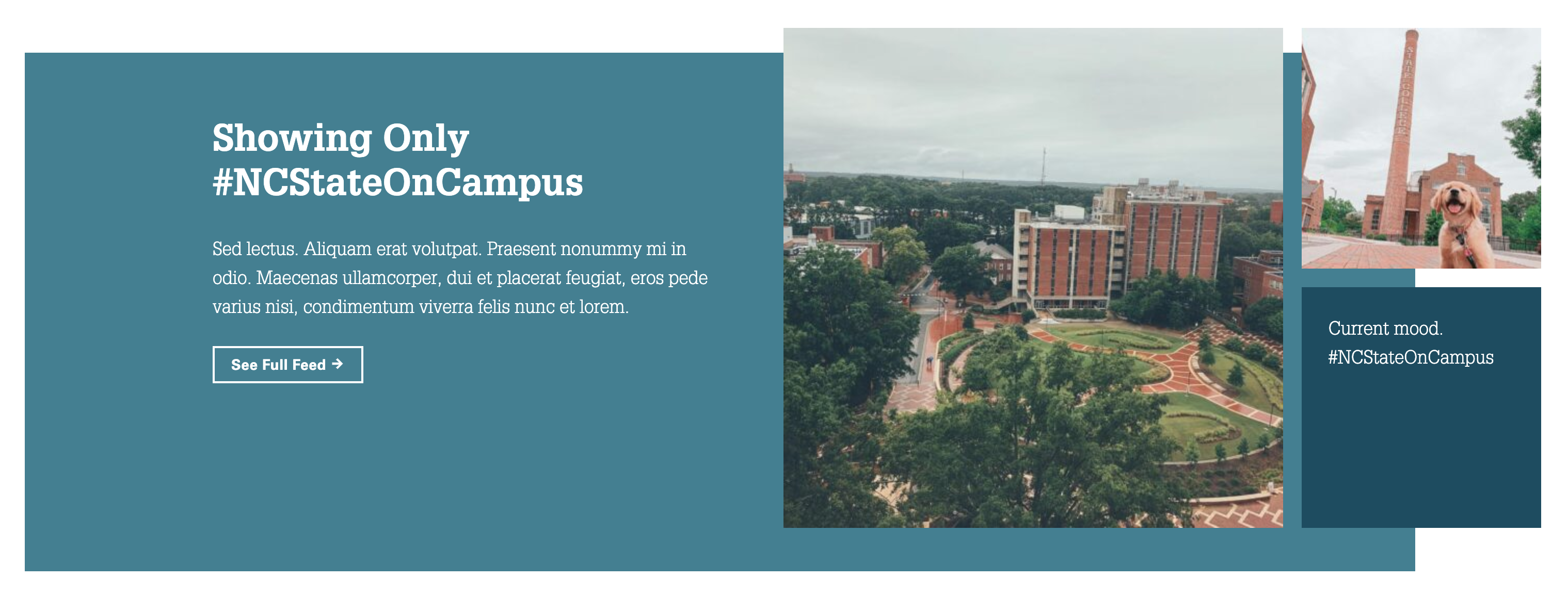
This block depends on installation and configuration of the Instagram Feed Pro Developer third party plugin, made by Smash Balloon. Connect an Instagram account to create a feed to use within this block.
Connect an Instagram Account
Before you can create a feed, you’ll need to connect the plugin to a source (an Instagram account).
- Log into the Instagram account you want to connect
- In a separate tab, navigate to your WordPress dashboard and go to Instagram Feed then Settings.
- Under Manage Sources click Add Source.
Create a Feed
- Navigate to your WordPress dashboard and go to Instagram Feed then All Feeds
- Click Add New
- Select User Timeline as the Feed Type and click Next
- Select the source created in the Connect an Instagram Account section above and click Next
- Select Default Theme and click Next
- Select Highlight and click Next
Your feed has been created, and you should now be on the Customize options page. Follow the steps below to match the styling shown in the example above. Note that these steps only cover settings you need to change. Any setting not mentioned keeps its default value.
- Select Feed Layout
- Under Layout select Highlight
- Under Highlight Settings set Highlight every to 3
- Under Number of Posts set Desktop to 3 and Mobile to 1.
- Under Columns set Desktop to 3, Tablet to 3 and Mobile to 1
- Click Customize at the top of the page to return to the customize options
- Select Header and click the toggle to Disable
- Click Customize at the top of the page to return to the customize options
- Select Posts
- Click Hover State
- Background and text colors are determined by theme
- Under Information to display select only Caption
- Click Customize at the top of the page to return to the customize options
- Click Hover State
- Select Load More Button and click the toggle to Disable.
- Click Customize at the top of the page to return to the customize options
- Select Follow Button and click the toggle to Disable.
- Click Customize at the top of the page to return to the customize options
- Select Lightbox and click the toggle next to Comments to Disable
- Click Customize at the top of the page to return to the customize options
- Click Save in the top right corner.
- Click </> Embed and take note of the number in the shortcode. This is your feed ID #. Your feed is now ready to add to the Instagram Feed block.
Add Feed to an Instagram Feed Block
- After creating a feed, use the number from the </> Embed pop up or by navigating to Instagram Feed then All Feeds, locating the shortcode next to the feed name and taking note of the number in the shortcode.
- Edit the page where you would like your feed to appear
- Insert the Instagram Feed block by clicking the blue plus sign (+) within the page or the blue plus sign in the top left corner of the editor.
- Click the Settings menu near the Save button to add your feed’s ID number and adjust the block’s settings
- Note that the feed will not appear in the back end but can be seen in preview and the front end once saved

- Click Save
Recommended Usage
The Instagram Feed block adds visual interest to a page and drives engagement with a unit’s social channels. For larger-scale feeds, use the Instagram Feed Pro Developer plugin with the Shortcode block.