Homepage Configuration
Content maintainers can easily build a homepage that looks custom-made through creative configuration of regular blocks and special homepage blocks through the Split Content block.
Changing the Page Template
Most pages in WordPress use the default template, but the homepage uses a designated homepage template that maintainers must choose during setup. To change a page’s template, take the following steps within the page editor:
- Navigate to the “Page” settings in the right-hand panel of the editor.
- Choose “Document” in the right-hand settings panel. Then go to Page Attributes -> Template and change the template to “Homepage.”
- Under the “Template” setting, click “Default template.”
- In the dropdown that appears, choose “Homepage.”
- Save your changes.

Header
There are two recommended header options for a homepage:
- Split Header: This header includes an image alongside a content box with a heading, subtitle and the option to add a call to action button that links to another page.
- Floating Box Header: This header includes a content box over a full-width image that features a heading, subtitle and the option to add a call to action button that links to another page. It also supports a silent, looping moving media file in place of a static image.
Split Content Block
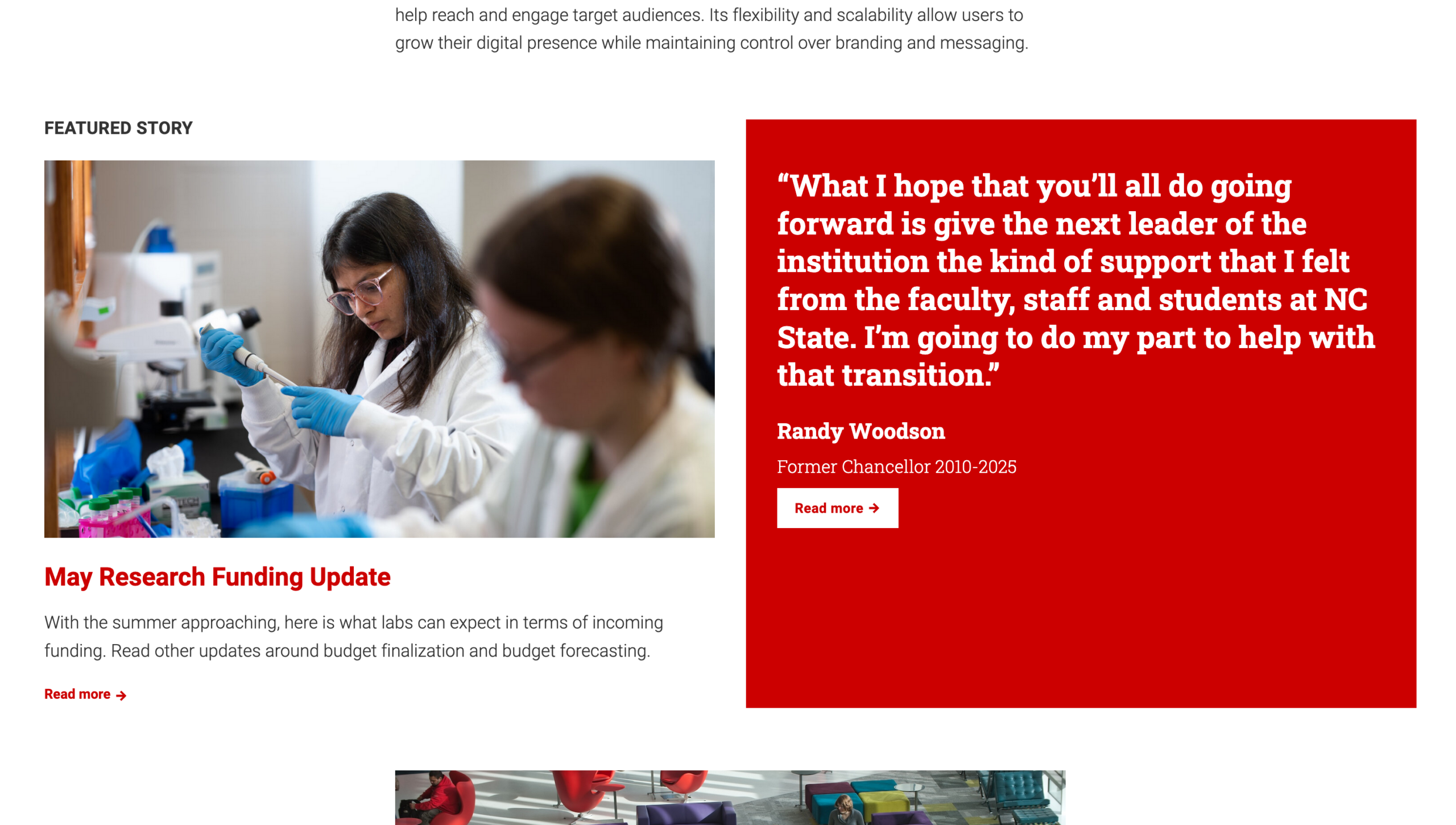
The special homepage blocks sit within a container known as a Split Content block. The Split Content block consists of two halves. Each half features its own unique block. There are several blocks that content maintainers can choose from within the Split Content block.